|
Scale |

|

|

|
||
|
Scale |
|
|

|

|
Scale
|
Scale |
|
|
|
||
|
Scale |
|
|
|
|
The Slide question type allows the questionnaire designer to set up a two sided or single sided slider for gaining ratings of stimuli. The examples below show what the Slide question can do. The ends of the slider can be text or images and is a great way of capturing paired comparison data.
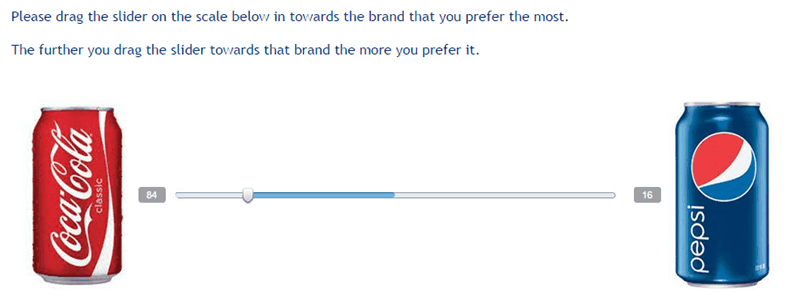
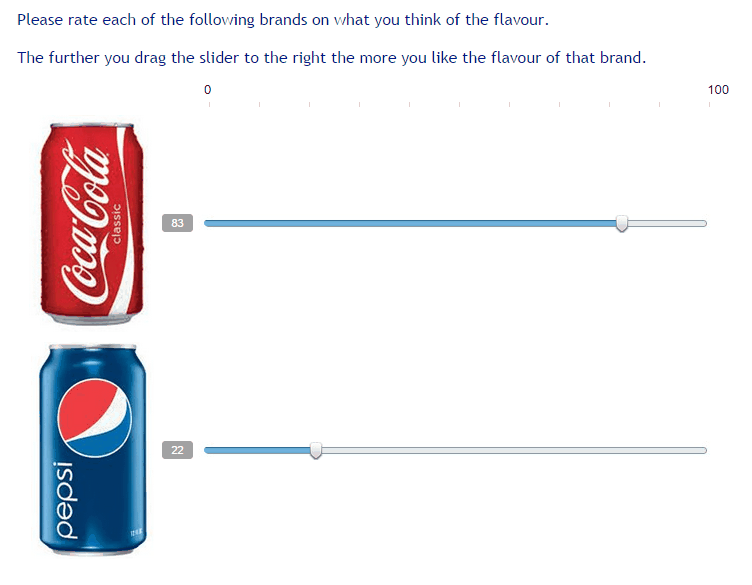
An alternative is to place the images or items on just one side of the slider as shown below.
Building this question.
 : Enter the question text by clicking on the Question Text icon. A rich text editor box appears where you type your question. You have full rich text control over the question formatting.
Note the question text appears in the central panel (Question Display) when you close the rich editor box by clicking the
 in the top left corner.
 : Enter the instruction text by clicking on the Instruction icon.A rich text editor box appears where you type your instructions. You have full rich text control over the question formatting.
Note the Instruction text appears in the central panel (Question Display) when you close the rich editor box by clicking the
in the top left corner.
 : If this option is checked a page break will be inserted after this question forcing the next question to appear on a separate screen. If you desire a number of questions to appear on the same page then uncheck this option and the next question will appear under this one and so on until you check the box to force a new page.
 : Question must be answered by the respondent. Note that the default setting is ‘True’.
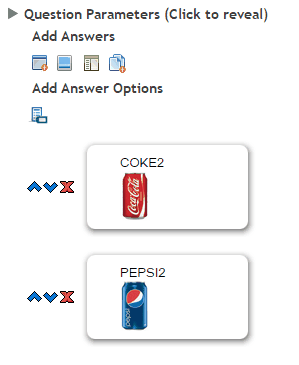
Next build the left and right stimuli by adding answers.
Note that if you add more then two answers each combination of paired comparison questions will be created.
The image below shows the entries for the above example.
Add answers:
 Add Answer Text: Click to add another answer option. Note your answers appear in the central panel (Question Display) as you enter them. Answer order can be changed with the up and down arrows, or deleted with the cross which all sit beside each answer.
 Add Answer Images: Click on this icon to open the image library and choose the images you wish to include as possible answers.
 Add Answer Rich Text: Click on this icon to include a rich text answer. Click on the rich text editor icon to open the rich text editor and include any formatted type of question you like.
 Add Answer Frame: Clicking this icon will open a pop up text box that will enable you to cut and paste all your column headings from another document in one go. Each column heading must be on a separate line. Any document formatting from the original document will be deleted.
 Add Answer Names: Allows the user to name each answer variable which will be used in the data extract.
Other parameters for Slide include:
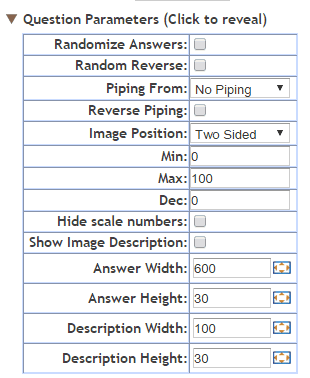
Randomize answers: Check the box to randomize the order of the answers for each respondent. Note that this option is often used with the Fix Position option to exclude options like Other and None from being included in the randomization.
Random Reverse: Check this to cause the order of a answer series to be reversed for 50% of the respondents. This is often used for rating scales were the order of presentation can have an impact on the result.
Piping from: Used to populate the answer fields with the answers selected by a respondent at an earlier question.
Reverse piping: populates the answer fields with all the answers from a previous question that were NOT selected.
To use simply select from the drop-down the previous question that contains the answers you wish piped.
NOTE: To construct a more sophisticated piping regime based on several previous questions use a Pipe question type.
Image Position: determines whether you are using a two ended scale or a single ended left or right scale.
Min: Sets the lower limit of the scale you wish to use.
Max: Sets the upper limit of the scale you wish to use.
Dec: Determines the number of decimal places the data is collected in.
Hide scale numbers: Checking this box causes the scale tick mark labels to be hidden from view.
Show Image Description: Will cause the description of an image to be displayed when image answer types are used. Note that the image description needs to have been created for the image in the image library.
Answer Width:
Answer Height:
Description Width:
Description Height:
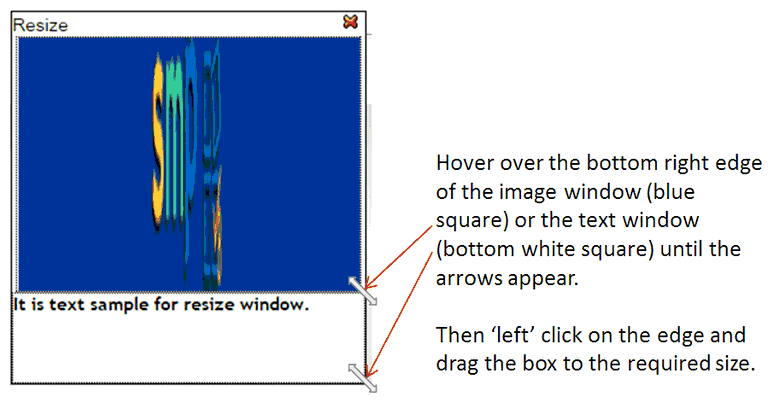
These options all allow the user to define the height and width of the answer values whether they are images or text. This can be achieved by either typing the exact number of pixels desired for the option being edited or by clicking on the box image which causes the folling pop up to appear. Once this pop up appears the size of the answer and/or description of an image can be set by dragging the pop u boxes to the desired widths.