|
Paired Comparisons |

|

|

|
||
|
Paired Comparisons |
|
|

|

|
Paired Comparisons
|
Paired Comparisons |
|
|
|
||
|
Paired Comparisons |
|
|
|
|
Paired comparisons are used in research to create a set of comparison data across a set of stimuli such as images or statements.
In SMP it is possible to use the 'Scale' question type to create the complete set of required comparisons possible from a set of stimuli (answer frame) automatically.
The following example users a range of 5 coffee biscuits to demonstrate.
Setting up the question.
| 1. | Create a new question. The question type is 'Scale'. |
| 2. | Give the question a meaningful name. Here it is called ‘Pairs’. |
| 3. | Click on the ‘Image Editor’ icon under 'Add Answers' to load your images as answers from the Image Library. |
| 4. | Name the images using the ‘Answers Name’ option. Click on the 'Answer Name' icon to reveal the text boxes. |
The question details will look something like this.
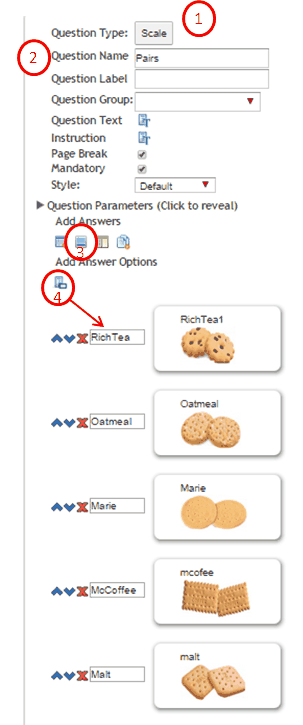
Now set some parameters. Press on the down arrow ‘Question Parameters’ (circled below) – to reveal the parameter settings.
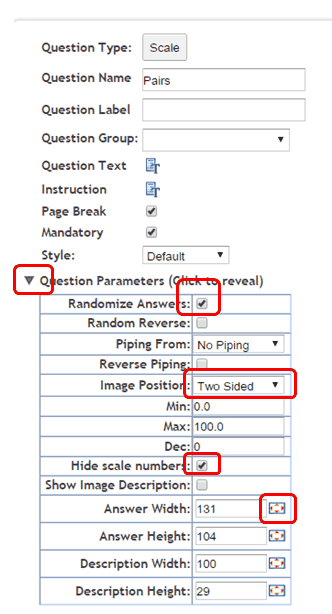
Change the required settings.
In this example we have:
| • | Checked the ‘Randomize Answers’ check box to randomize the order the pairs are shown in and the order of the placement of the images (Left or Right) |
| • | Selected ‘Image Position’ – Two sided. This is required to create a paired comparison. |
| • | Selected ‘Hide scale number’ to hide the scale. |
| • | Used the 'Re-size' pop up tool to create images of the size required. Note that you can type numbers into the width and height boxes instead. |
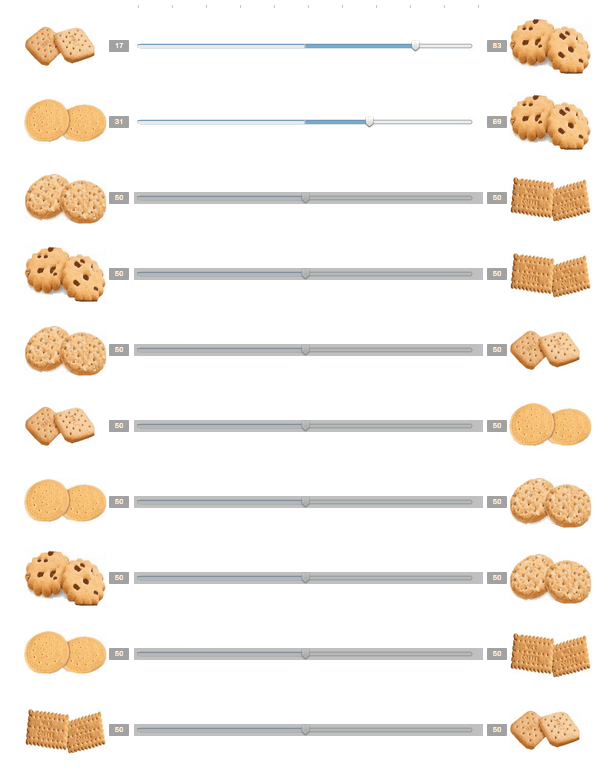
This is how the images will be presented to the respondent.
Note the randomization. The presentation order of the pairs and the left / right will be different for every respondent.
The respondent clicks on the scale to activate it then shifts the slider to indicate their preference.
Data is stored in the order in which the answers are set in the right hand parameters pane when the question was created.
So this order:
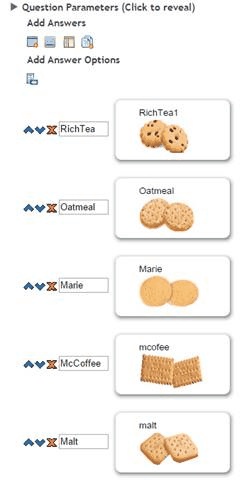
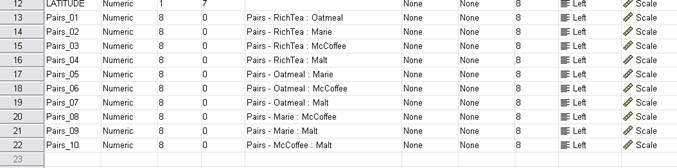
will create this data set in SPSS.
Note: The score that is recorded is always the score for the left hand image, non-randomized.
The SPSS variable Label description (circled below) shows exactly what the pair is - provided you set the ANSWER VALUES using the 'Answer Values' option.
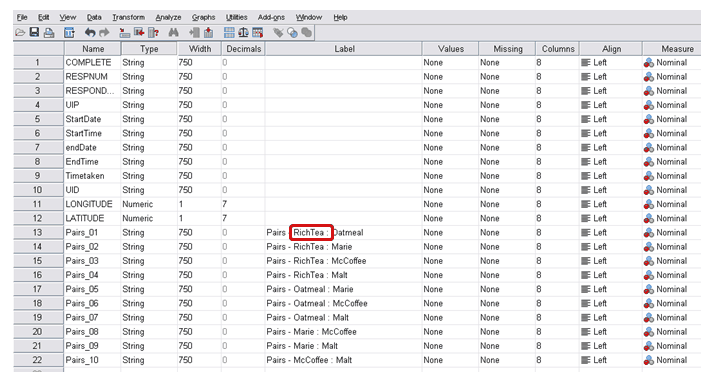
Note that the SPSS settings above default to Strings. Simply change these to numeric and scale when you are ready to analyse as shown below.