|
Evoked Set |

|

|

|
||
|
Evoked Set |
|
|

|

|
Evoked Set
|
Evoked Set |
|
|
|
||
|
Evoked Set |
|
|
|
|
The evoked question creates a set of answers from a group of possible answers that can be piped through to other questions latter in the survey.
For example a researcher may be researching beer brands and wish to survey the respondent about a set of brands that they are familiar with.
Typically they would ask a battery of questions such as:
Main brand, Alternate brand, Supplementary brand and Reject brand. When this set is gathered together the respondent is then quizzed about these brands only in a battery of questions.
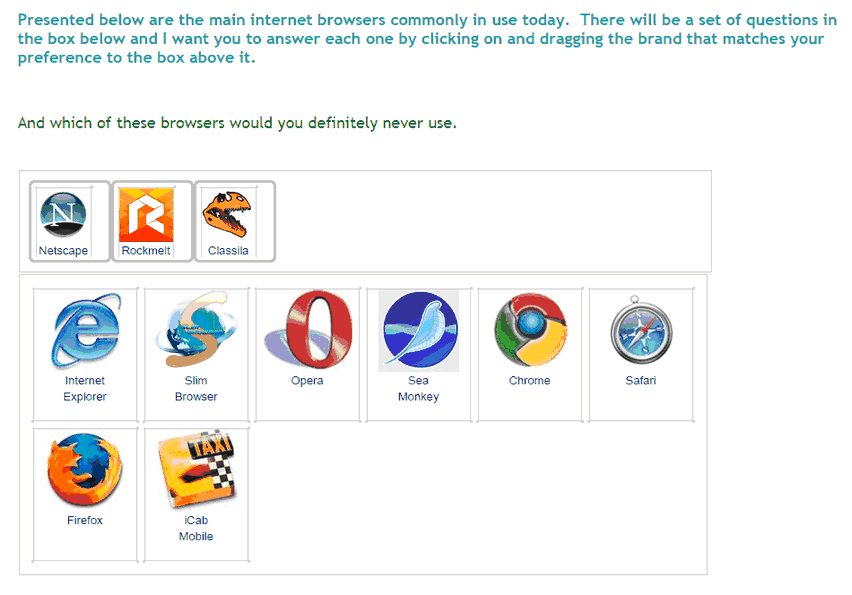
Here is an example using internet browsers.
Question Elements
Enter the Name and Label of the question in the text boxes. Then enter:
 : Enter the question text by clicking on the Question Text icon. A rich text editor box appears where you type your question. You have full rich text control over the question formatting.
 : Enter the instruction text by clicking on the Instruction text icon. A rich text editor box appears where you type your instructions. You have full rich text control over the question formatting.
 : Causes the following question to appear on a new screen (default) Un-click this box to turn off Page Break and cause the questions to appear on the same screen or page, one under each other.
 : If this box is checked then the question must be answered by the respondent to continue with the survey. Note the default setting is ‘True’.
Add The Questions
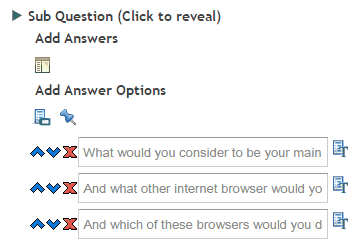
 Add Question: Press on this icon to add another question. A rich text box like the three above will appear each time you press on this box. Click on it to reveal the rich text editor and add and format your question.
 Answer name: Click to input the names you wish to give each question which will also appear in the data extract when you download the data.
 Fix position: Click on this option to select the columns that you wish to lock in position when using the randomize option. For example you may wish to lock an answer such as Not Applicable as the last column.
Add Some Answers
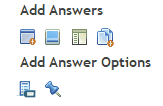
 Add Text Answer: The first icon allows you to enter an un-formatted text column heading. You can cut and paste the text into these column heading boxes from MS Word without worrying about the Word formatting coming across. The default theme formatting will be applied which is suitable in most cases.
 Add Answer Images: The second option opens the image library. Select the images you wish to use in the grid by clicking on and selecting the appropriate images. Note that you can upload new images to your library from this option also.
Add Rich Text Answer: The third option allows you to create a rich text column heading. Clicking on this icon creates a placeholder - you then click on this placeholder to open the rich text editor and type in and format your column heading.
 Add Answer Frame: Clicking this icon will open a pop up text box that will enable you to cut and paste all your column headings from another document in one go. Each column heading must be on a separate line. Any document formatting from the original document will be deleted.
Add Some Formatting
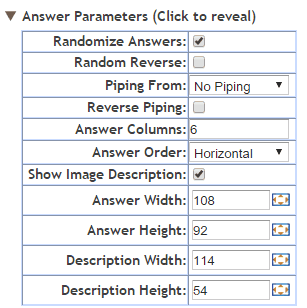
Randomize answers: Select to randomize the answers presented to the respondent.
Random Reverse: This option reverses the order in which the answers are presented from "first to last" to - "last to first" at random for different respondents.
Piping from: Used to populate the answer fields with the answers selected by a respondent at an earlier question.
Reverse piping: populates the answer fields with all the answers from a previous question that were NOT selected.
To use simply select from the drop-down the previous question that contains the answers you wish piped.
NOTE: To construct a more sophisticated piping regime based on several previous questions use a Pipe question type.
Answer Columns: Arranges the answers into the designated number of columns. Useful for long lists of potential answers.
Answer Order: Arranges the list of answers in either a horizontal fashion - across the top first then down to the next row, or, vertical, down the column first then across to a new row.
Show Image Description: Will cause the description of an image to be displayed when image answer types are used. Note that the image description needs to have been created for the image in the image library.
Resizing Images:
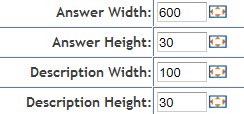
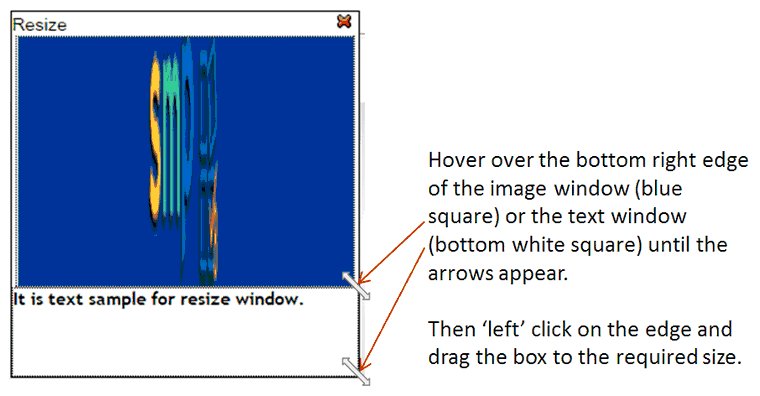
These options all allow the user to define the height and width of the answer values whether they are images or text. This can be achieved by either typing the exact number of pixels desired for the width and height or by clicking on the re-size tool icon  which causes the following pop up to appear. Once this pop up appears the size of the answer and/or description of an image can be set by dragging the pop up boxes to the desired widths.
Hover over the bottom right hand edge of each box and drag to the desired size..