|
Answer Group editor |

|

|

|
||
|
Answer Group editor |
|
|

|

|
Answer Group editor
|
Answer Group editor |
|
|
|
||
|
Answer Group editor |
|
|
|
|
The "Answer Group editor" defines a group name that can be used to allocate answers to for the purpose of making it easier to define routing instructions in the GATE question type. To define an answer group click on the Answer group editor icon.

This will cause the following pop-up to appear.
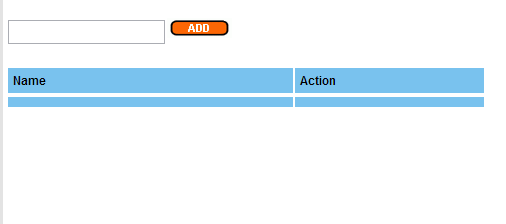
Add an answer group name in the text box and press "Add". The answer group will appear in the pop-up list and can be used to define groups of answers as in the example below.
Example:
My survey has a list of age groups and I want to define a group that will hold a set of answers that relate to younger respondents only so I can rout them to a particular spot in the survey. To do this click on the Answer group editor icon and define a group called "Young".
The pop-up will look like this when you have finished.
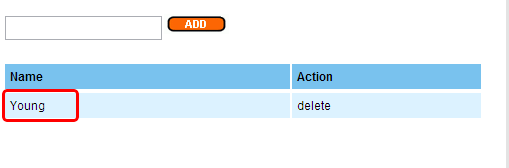
To apply answers to this group click on the answer group option icon highlighted below. This will cause a drop down control to appear next to each answer. Click on the drop down and select the answer group you wish to apply each answer to. The following screen shows the answers that have been assigned to the group "Young".
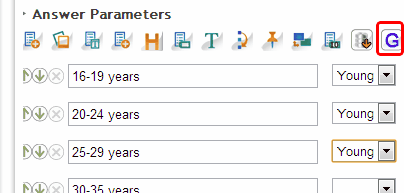
You can now use this group to control certain other aspects of your survey.
For example: If I want to rout the above three age groups to question S4 without using the group function then you would need to define a condition for each of the age groups involved - as in the example below.
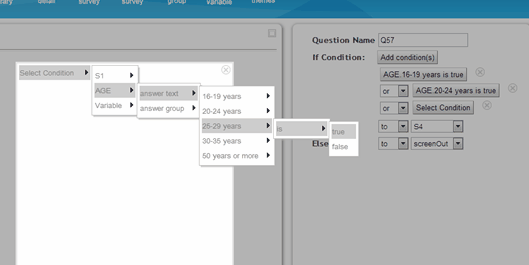
This would work but is tiresome - especially if the list of answers you are using is particularly long - such as a list of postcodes or suburbs.
By using the Answer Group function you can simplify the selection criteria in the gate to just one condition and achieve the same result, as in the image below.
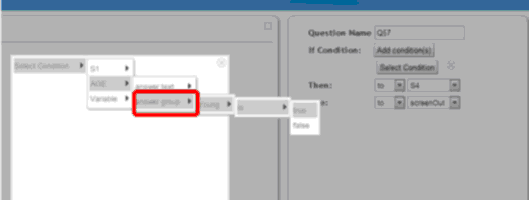
Note that this time you have only had to define the answer group, in this case "young", as true and not each element of the group for the routing action to occur.